
 Français
 Español
 日本語
 العربية
 繁体中文
 简体中文


Are You Testing Android Auto Too Late? The Desktop Head Unit Can Help Move Validation Earlier.
1. Why Should Android Auto Validation Start Earlier?
For automotive software developers, testing an application on a real vehicle can involve considerable coordination.
A development team may need access to a compatible head unit, a vehicle or an aftermarket stereo system, a mobile device and the relevant software environment.
When the application is still undergoing frequent development changes, relying exclusively on real vehicle testing can make the development process less convenient.
This raises an important question:
Does your team need a real vehicle every time it wants to check the basic behaviour of an Android Auto application?
Google provides a development tool designed to address part of this challenge: the Desktop Head Unit, commonly known as DHU.
The DHU allows a development computer to emulate an Android Auto head unit so developers can run and test Android Auto applications.
It is available for Windows, macOS and Linux.
For software developers and automotive suppliers, this creates an opportunity to bring certain validation activities earlier into the development process.
2. What Is the Desktop Head Unit?
The Desktop Head Unit is a development and testing tool provided by Google.
It emulates an Android Auto-compatible head unit on a development computer.
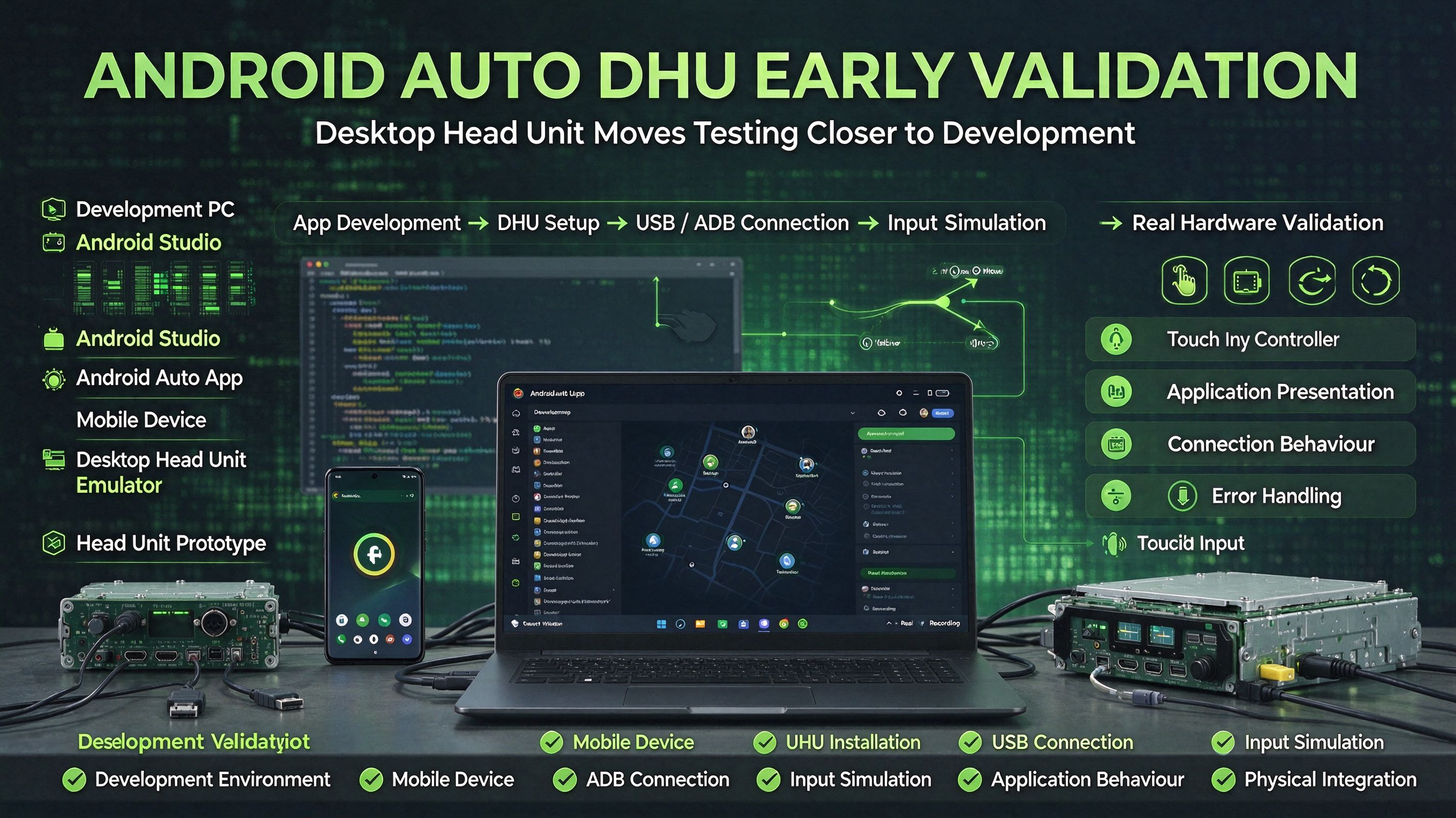
Developers can connect a compatible Android mobile device to the computer and use the DHU to reproduce an Android Auto environment.
This makes it possible to investigate application behaviour without depending on a physical vehicle for every early-stage check.
The tool is particularly useful for examining:
Application presentation.
Basic interface behaviour.
Touch interaction.
Rotary-controller interaction.
Application connection behaviour.
Certain development and debugging scenarios.
However, it is important to understand its role.
The DHU is an emulator, not a complete replacement for testing on real automotive hardware.
It provides a controlled development environment, while vehicle-level validation remains necessary for evaluating the complete system.
3. Preparing the Development Environment
Google's official documentation describes the installation process.
Before starting, development teams should prepare the following:
A development computer running Windows, macOS or Linux.
Android Studio.
A compatible Android mobile device.
Android Auto installed on the mobile device.
The Android Auto Desktop Head Unit Emulator package.
A USB connection or supported ADB connection method.
Google's documentation specifies that the mobile device should run Android 9 (API level 28) or higher for the described setup process.
For devices running Android 10 or higher, the documentation also notes the need to sign in to Google Play and update Android Auto before the first DHU session.
These preparation steps should be checked before troubleshooting the connection itself.
4. Installing the Desktop Head Unit
The installation process starts from Android Studio.
Step 1: Open SDK Manager
Launch Android Studio and open the SDK Manager.
Navigate to the SDK Tools tab.
Step 2: Locate the Android Auto DHU package
Find the Android Auto Desktop Head Unit Emulator package and download it.
Step 3: Locate the installation directory
Google documents the installation location as:
SDK_LOCATION/extras/google/auto/
Step 4: Prepare the executable
For Linux and macOS, Google specifies that the DHU binary may need executable permissions.
The documented command is:
chmod +x ./desktop-head-unit
Step 5: Check platform-specific dependencies
Linux users should review the documented dependency requirements.
Google notes that DHU 2.x requires GLIBC 2.32 or later and the relevant C++ runtime libraries.
These dependencies should be confirmed before starting the emulator.
5. Connecting the Mobile Device
Once the DHU is installed, the next step is to establish a connection between the mobile device and the development computer.
Google documents two principal connection methods.
Method A: USB Accessory Mode
For DHU 2.x, Google recommends using the Android Open Accessory protocol.
The documented command is:
./desktop-head-unit --usb
The DHU will attempt to identify a compatible USB device.
If a specific device needs to be selected, the command can include its device ID:
./desktop-head-unit --usb=[DEVICE_ID]
This approach is useful when the development computer and mobile device can establish the supported USB accessory connection.
However, Windows users should pay attention to the USB driver configuration.
Google notes that WinUSB driver installation may be required and can interfere with ADB connectivity in certain circumstances.
Method B: ADB Tunneling
Another option is to connect through Android Debug Bridge.
The process involves enabling Android Auto developer mode and starting the head unit server on the mobile device.
The development team then connects the device to the workstation using USB.
Google documents the default head unit server port as 5277.
The connection can be configured using the relevant DHU command-line option.
For example:
./desktop-head-unit --adb=5999
The actual port should match the configured connection environment.
6. Simulating Different Input Methods
One of the useful features of the DHU is its ability to simulate different input methods.
By default, the DHU emulates a touchscreen interface.
Developers can interact with the interface using a mouse.
However, automotive infotainment systems do not all rely exclusively on touchscreen input.
Some vehicles use rotary controllers or a combination of input methods.
Google provides command-line options to simulate different input configurations.
For example:
./desktop-head-unit -i controller
This command enables rotary-controller input mode.
Google also documents the following input modes:
touchrotaryhybrid
These options allow developers to investigate application behaviour under different input conditions.
For teams developing applications for multiple vehicle environments, this can be a useful early-stage validation activity.
7. What Can DHU Help Developers Validate?
The DHU can support several development activities.
Application presentation
Developers can inspect how an application appears within the simulated Android Auto environment.
Basic interaction behaviour
The team can investigate how the application responds to supported input methods.
Connection troubleshooting
Developers can check whether the mobile device and DHU establish the intended connection.
Early development feedback
The emulator can help identify certain interface and integration problems before testing on actual vehicle hardware.
Input configuration
The ability to simulate touchscreen and rotary input can help developers investigate different user-interaction scenarios.
These capabilities make DHU useful as part of an early validation strategy.
8. What DHU Cannot Automatically Validate
This distinction is particularly important for automotive suppliers.
The DHU does not automatically demonstrate complete vehicle-level compatibility.
For example, it should not be treated as a substitute for:
Actual head-unit hardware verification.
Vehicle-specific integration testing.
EMC testing.
RF and wireless performance testing.
Complete vehicle audio integration.
Antenna and wireless connectivity evaluation.
All applicable automotive environmental and reliability tests.
These activities depend on the actual product configuration and project requirements.
A software emulator cannot reproduce every characteristic of a physical vehicle and its electronic architecture.
Therefore, development teams should define which issues can be evaluated in simulation and which require physical hardware.
9. Practical Android Auto Validation Checklist
Checkpoint | Why it matters | Recommended action |
|---|---|---|
Development environment | The emulator depends on the supported software environment | Confirm OS and Android Studio configuration |
Mobile device | Android Auto must be available on the device | Verify Android version and application status |
DHU installation | Incorrect installation can prevent execution | Confirm SDK package and executable path |
USB connection | Accessory-mode connection requires compatible configuration | Verify USB device recognition |
ADB connection | Incorrect port configuration can prevent communication | Check ADB status and head unit server |
Input simulation | Different vehicle systems use different input methods | Test touch, rotary and hybrid modes |
Application behaviour | Early testing can reveal development issues | Record observed issues and software versions |
Physical integration | Simulation does not reproduce every vehicle condition | Plan subsequent real-hardware validation |
10. A More Efficient Development Workflow
A practical development workflow can combine simulation and physical validation.
Stage 1: Application development
Develop the Android Auto application according to the relevant Google documentation.
Stage 2: Early DHU testing
Use the Desktop Head Unit to investigate basic application presentation and supported interactions.
Stage 3: Issue identification
Record application behaviour, connection issues and other observed problems.
Stage 4: Software correction
Address identified issues and repeat the relevant simulation activities.
Stage 5: Real-device validation
Test the application on the relevant physical head-unit and mobile-device configurations.
Stage 6: Vehicle integration
Evaluate the complete application and infotainment system in the intended vehicle environment.
This approach allows development teams to use simulation where appropriate without overlooking the importance of physical integration.
11. Conclusion
The Android Auto Desktop Head Unit is a useful tool for bringing certain application validation activities earlier into the development process.
By providing a simulated head-unit environment, it allows developers to examine application presentation, connection behaviour and different input configurations without relying on a physical vehicle for every early-stage test.
However, simulation and real-world validation serve different purposes.
For automotive software developers and Tier 1 suppliers, the most effective approach is to combine early DHU testing with subsequent hardware and vehicle-level verification.
Blue Asia supports electronic product manufacturers with EMC, RF and wireless testing and global market-access-related services.
For automotive infotainment products, the applicable testing scope should be evaluated according to the hardware architecture, wireless functions and intended target markets.
Contact Blue Asia
Email: [email protected]
WhatsApp: +86 17663606879
 Blog
Does Your DAB+ Receiver Know When to Retune? Cross-Region Driving Can Expose Hidden Design I
Read article
 Blog
Are You Testing Android Auto Too Late? The Desktop Head Unit Can Help Move Validation Earlie
Read article
 Blog
Can Your eCall System Transmit the Right Data? Position, Time and Vehicle Identification Mat
Read article
 Blog
Does Your CarPlay Interface Really Fit the Vehicle? Display and Interaction Need More Than B
Read article
 Blog
Why The Best Compliance Strategy Is To Design Products That Never Need Retesting
Read article
 Blog
Why Automotive Connectivity Certification Is No Longer About One Test—It's About Buildi
Read article

 4000259520